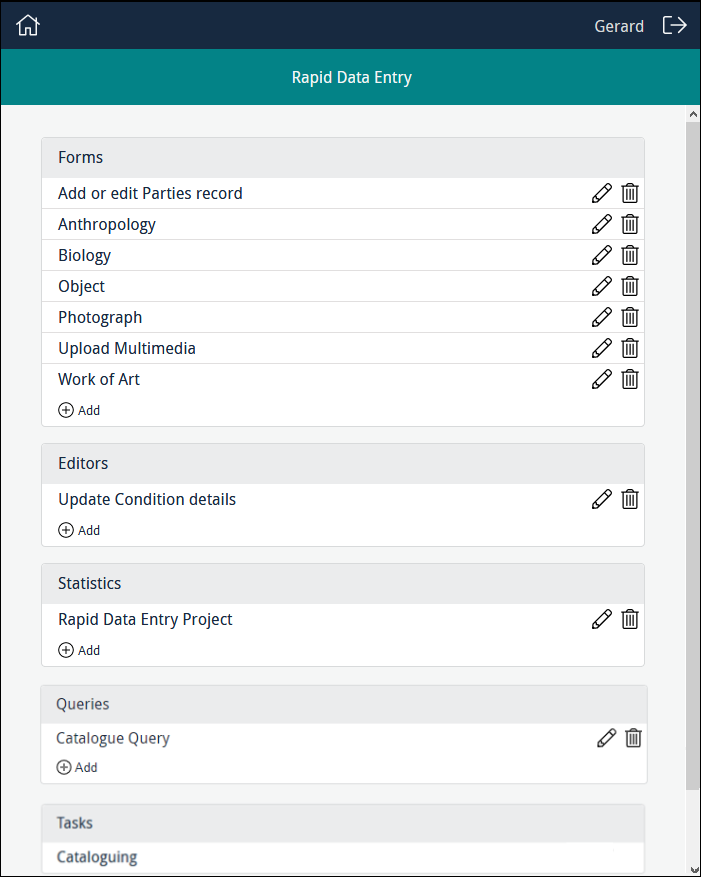
When a Programme Lead accesses a project, any Forms, Editors, Tasks, Query pages and Statistics tools already created will be listed, along with options to edit, delete and add new instances of them, e.g.:
 What is a Task?
A Sapphire project can include one or more Forms, each of which can be selected from the Dashboard as needed (details about working with Forms can be found here). Where it makes sense, two or more Forms can be added to a Task:
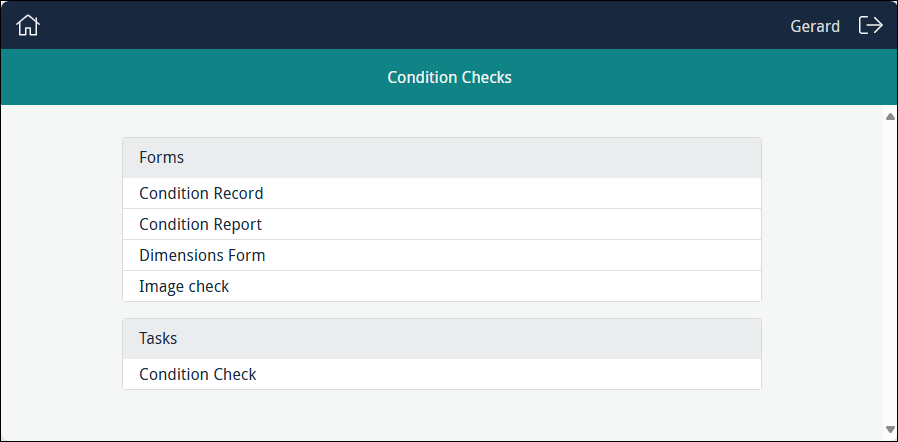
With a Task it is possible to work through multiple Forms in sequence without the need to select each Form separately from the Dashboard. In the example above, the four Forms listed in the Forms section all process data in the Condition Checks module and they have been added to the Condition Check Task. When the Task is run, the first Form, Condition Record, will display:
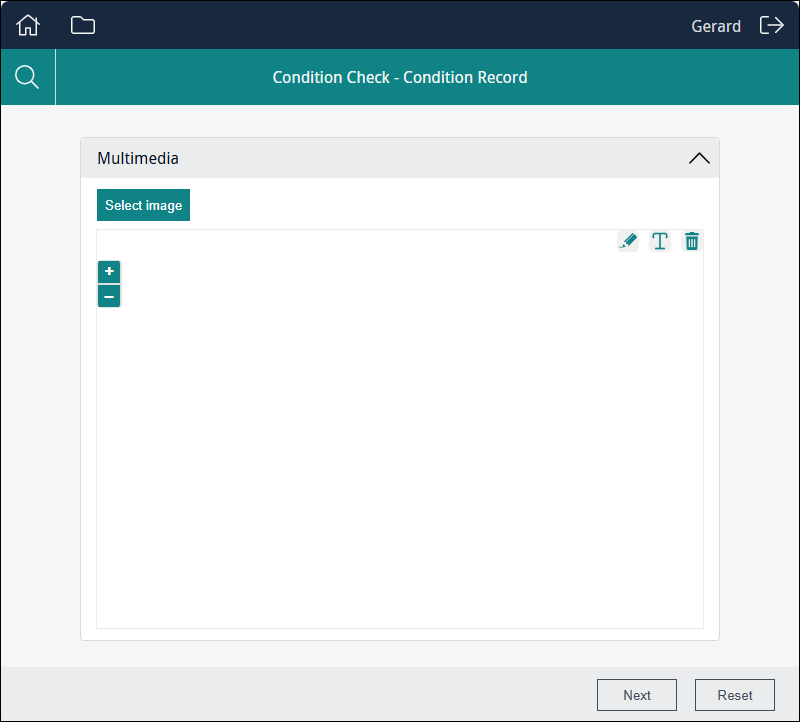
When the user completes the Form and selects Next, the next Form in the sequence will display. When the final Form in the sequence is reached, the Next button is replaced with the Save button:
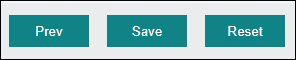
Selecting Save will save all data added to each of the Forms in the current sequence, modifying affected records and creating records as required, returning then to the first Form in the sequence.
To edit an existing Task, click  beside a Task's title. The Task will open in the Task designer ready for editing.
To configure a new Task, click  in the Tasks section. The Task designer displays:
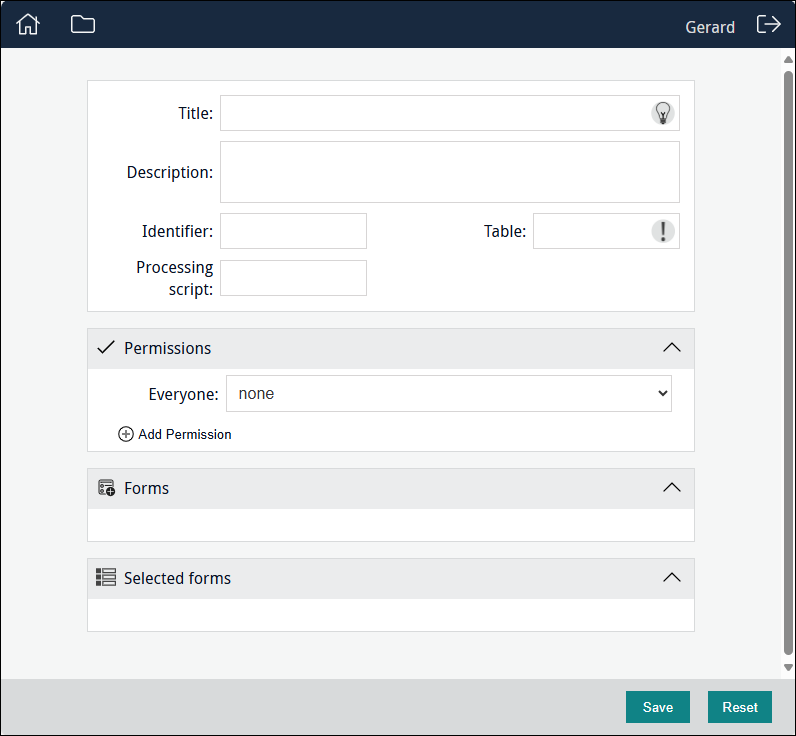
Here you configure a Task, assign permissions to users (specify who can use this Task; who can modify it).
1. Complete or modify the top section of the Task
|
Title |
A descriptive name for the Task; this will display in the project dashboard for users. |
|
Description |
A description of the Task. Details
An Information icon displays alongside the title of a Form, Editor or Query when a description is added for that project element:
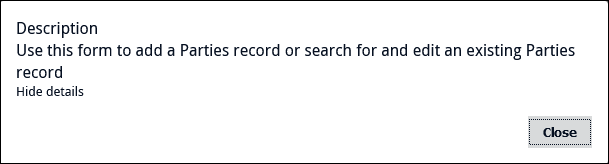
Clicking the icon will display a popup with the description:
A Task is the combination of two or more Forms presented one after another in sequence, and the Information icon alongside a Form's title will present that Form's description (as it would if the Form was used on its own). A description added for a Task is not displayed to users; however it can be useful to add details about the Task as a reminder, or for the benefit of other Programme Leads working in the Task designer. |
|
Provide a descriptive identifier for the Task, or leave the field blank and an alphanumeric identifier will be assigned automatically. Details
Typically, it is irrelevant whether the identifier is an alphanumeric value provided by the system or a descriptive label provided by a Programme Lead as it is only referenced behind the scenes by various components of Sapphire, or used to construct the URL for the Form. There are situations when it might be handy to assign a descriptive identifier however, e.g.:
Note: If providing an identifier, it is recommended that it is constructed from letters, numbers, hyphens and underscores only (no spaces). |
|
|
Table |
It is only possible to include Forms in a Task that update the same EMu module. When you specify a module in the Table field, the Forms section of the Task designer will automatically list all Forms in the current project that update that same module. Details
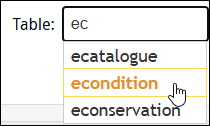
A filtered drop list of module names will display as you enter characters in the Table field. Select a module name from the list:
For this example we want to include all Forms that update the Condition Checks module in the Task. When econdition is specified in Table, the Forms section of the Task designer lists the four Forms in the current project that update this module:
|
|
Processing script |
As we have seen, a script can be assigned to a Form to manipulate Form data in any number of ways. A typical use of a Processing script is bulk creation of records. If a script has been assigned to a Form that you intend to include in the Task, be sure to ALSO specify that script here. Details about scripts here. |

 2. Permissions section: specify permissions for Everyone, or for one or more users / groups
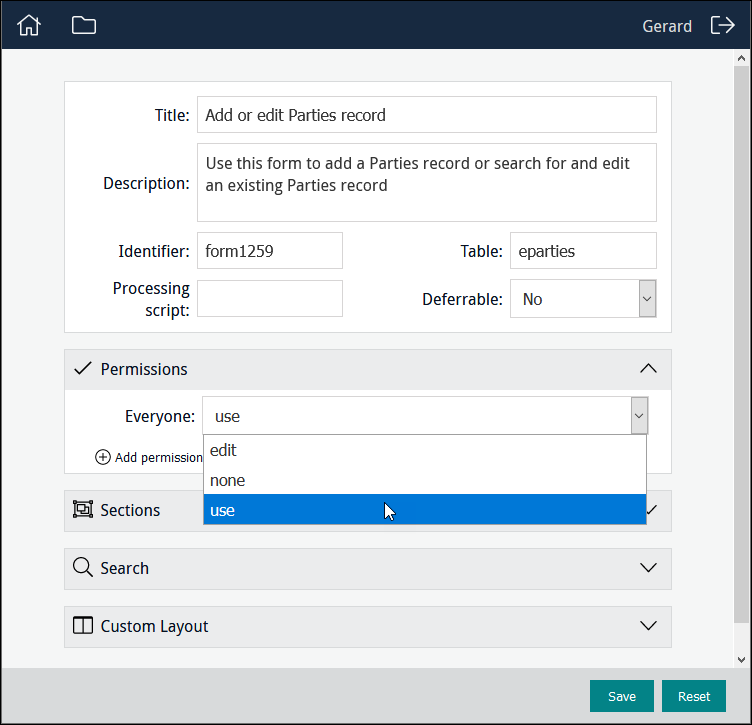
Three permissions for project elements (Forms, Editors, Statistics, Tasks, Query pages) can be assigned :
|
|
This is the default state for Everyone when a project element is created: the element is not available to users and will not be listed when they log in. |
|
|
When assigned, the project element will be listed when an authorized user logs in. The user can use the project element but not modify it. |
|
|
When assigned, the project element will be listed when an authorized user logs in. The user can use the project element, modify and delete it. When the project element is listed in the Dashboard, the edit |
 icons will display beside its name.
To change access permissions that affect all users of a project element, select the appropriate permission from the Everyone drop list:
To change access permissions to a project element for a specific user or group:
- Click
 .
.Additional fields display:
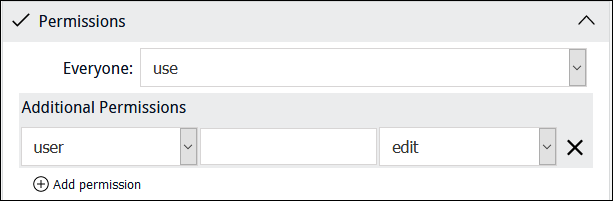
- Select user or group from the first drop list.
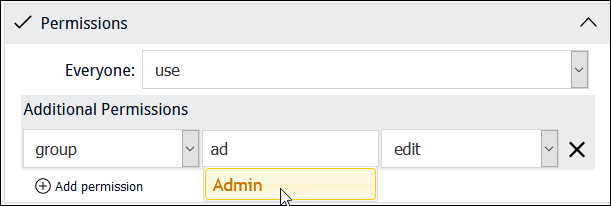
- Begin keying a user or group name in the second field and select a name from the list of suggestions that will display:
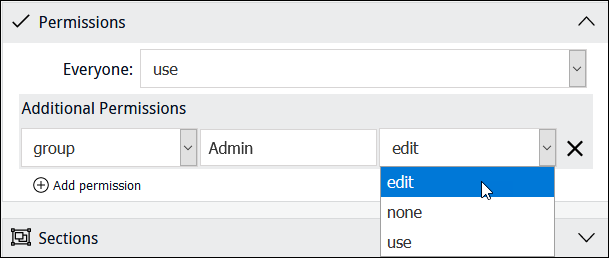
- Select a permission from the Permissions drop-list:
Note: Click  beside an assigned user or group permission to remove it.
3. Add Forms to the Task
It is only possible to include Forms in a Task that update the same EMu module. When you specify a module in the Table field, the Forms section of the Task designer will automatically list all Forms in the current project that update that same module:
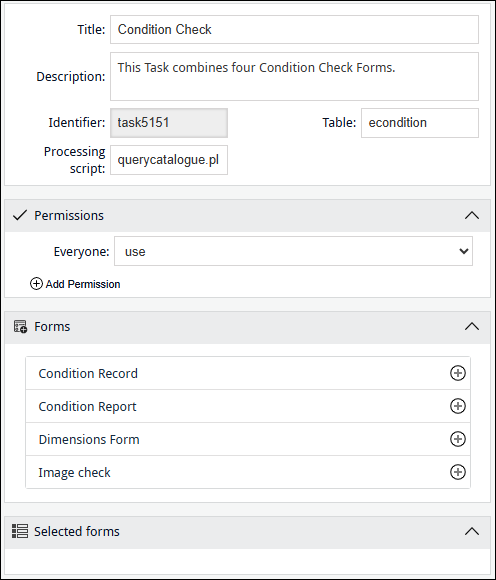
Click the Plus icon beside a Form's title to add it to the Selected forms list:
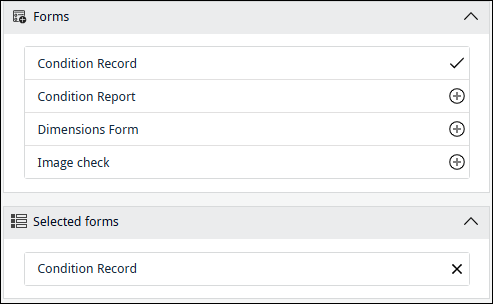
The Plus icon changes to a tick to indicate that it has been added to the Task.
To remove a Form from the Selected forms list, click the X beside the Form's title.
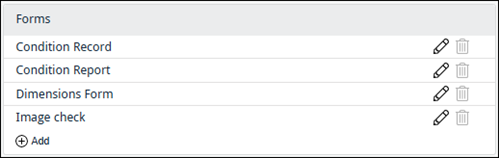
When a Form is included in a Task, it is no longer possible to delete if from the project dashboard (the Delete button is disabled):
4. Save the Task
Click  to save the Task.
If you did not specify an Identifier for the Task, it will be assigned automatically.
Reports
It is possible to associate one or more reports with a Task to report on data entered during the current sequence of Forms. In this case the final Form in the sequence will include a Preview button rather than a Save button:
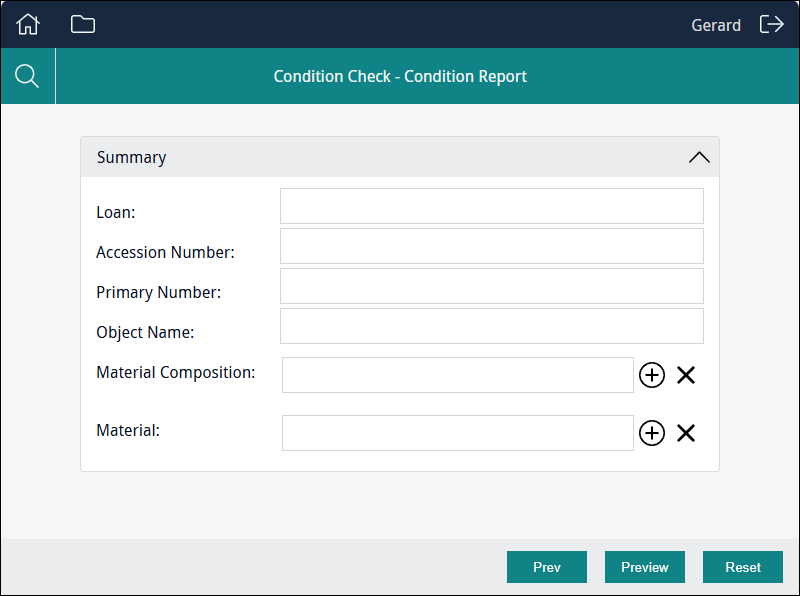
Selecting Preview will list the available reports:
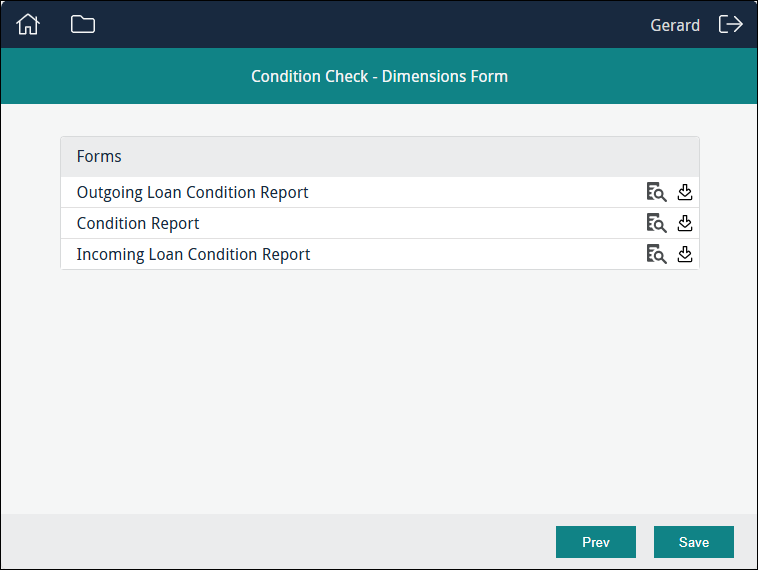
From here a user has the option to view  and / or download
  a report of the data entered during the current sequence of Forms. When Save is selected the data is saved, the report cache is cleared and the first Form in the sequence is displayed again.
How to configure a Sapphire report
A Sapphire report is configured in the same way as any other EMu report (details here). In the example above, the Forms included in the Task all modify data in the Condition Checks (econdition) module and the three reports available to the Task were all defined in the Condition Checks module:
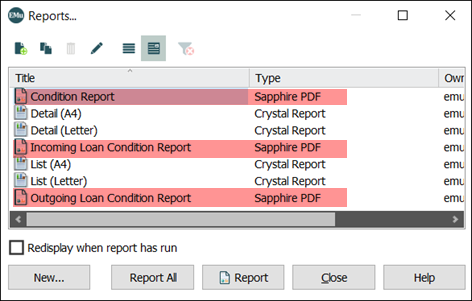
Note that the report Type = Sapphire PDF.
As with an EMu report, several Registry entries are required to set up a Sapphire report:
- Task Print Registry entry (associate a report with an Axiell Sapphire Task).
- Reports|Action (define the action for each report type), e.g.:
SystemSettingReportsActionSapphire PDFLaunch Temp %1 - Reports|Filter (define a filter that needs to run before sending the report output to the client), e.g.:
SystemSettingReportsFilterSapphire PDFsapphirepdf -f%x -r%t